Web dashboard
What it's for: a visual interface for everything the CLI does — browse and filter your lesson history at a glance, adjust your knowledge map by clicking, and import/export backups. It's a companion to the automatic coaching in your agent, reading and writing the same local database.
Launch
npx -y devcoach ui              # http://localhost:7860
npx -y devcoach ui --port 8080  # custom port
Installed devcoach globally or via Homebrew? Drop the npx -y and just run devcoach ui. The URL is
printed as a clickable link (terminals that support OSC 8 hyperlinks — iTerm2, Ghostty, WezTerm, Kitty,
VS Code, Windows Terminal, GNOME Terminal; elsewhere cmd/ctrl-click the plain URL), and --open
launches your default browser as well. The dashboard binds to 127.0.0.1 only, so it is never
reachable from other machines. If the port is taken, devcoach ui tells you whether a dashboard is
already running there (open it, or --stop it) or another process holds the port (pick --port).
Or let Claude open it for you via the MCP tool:
open_ui({ port: 7860 })
Using the Claude Code plugin? It ships a shortcut for exactly that —
type /devcoach:ui (optionally with a port, e.g. /devcoach:ui 8080) and Claude starts the dashboard
and hands you the URL. No install, no PATH needed.
Stop
- In the terminal that runs
devcoach ui: Ctrl+C. The shutdown is graceful — the server stops accepting, lets requests in flight finish (up to 2 s), then exits; a second Ctrl+C exits at once. - A dashboard started by your agent (
open_ui,/devcoach:ui) runs detached, so Ctrl+C cannot reach it: ask the agent to close it (/devcoach:ui stop, or "stop the devcoach dashboard" → thestop_uitool), or rundevcoach ui --stop(add--portif you changed it). Both work on any dashboard listening on that port.
Pages
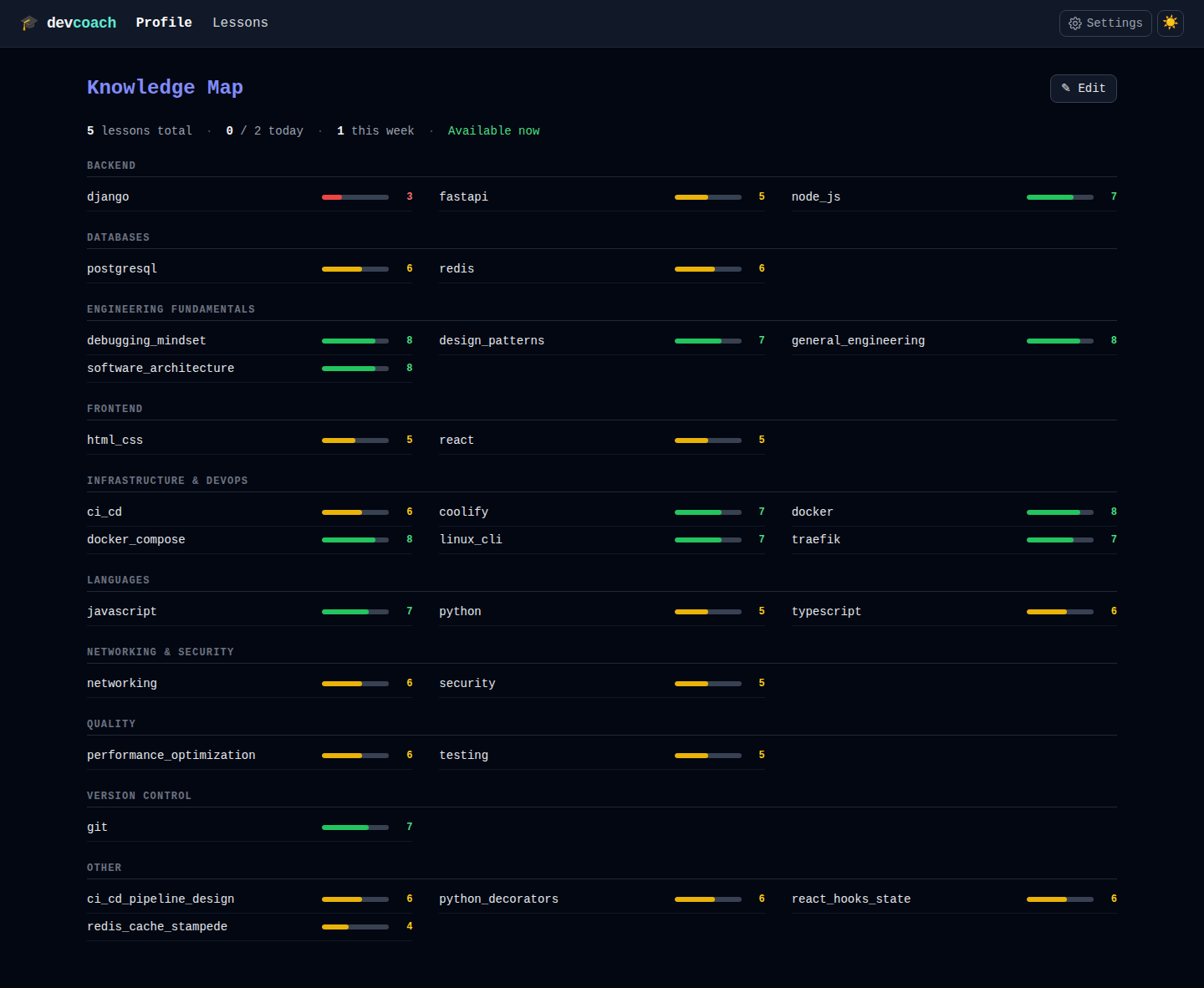
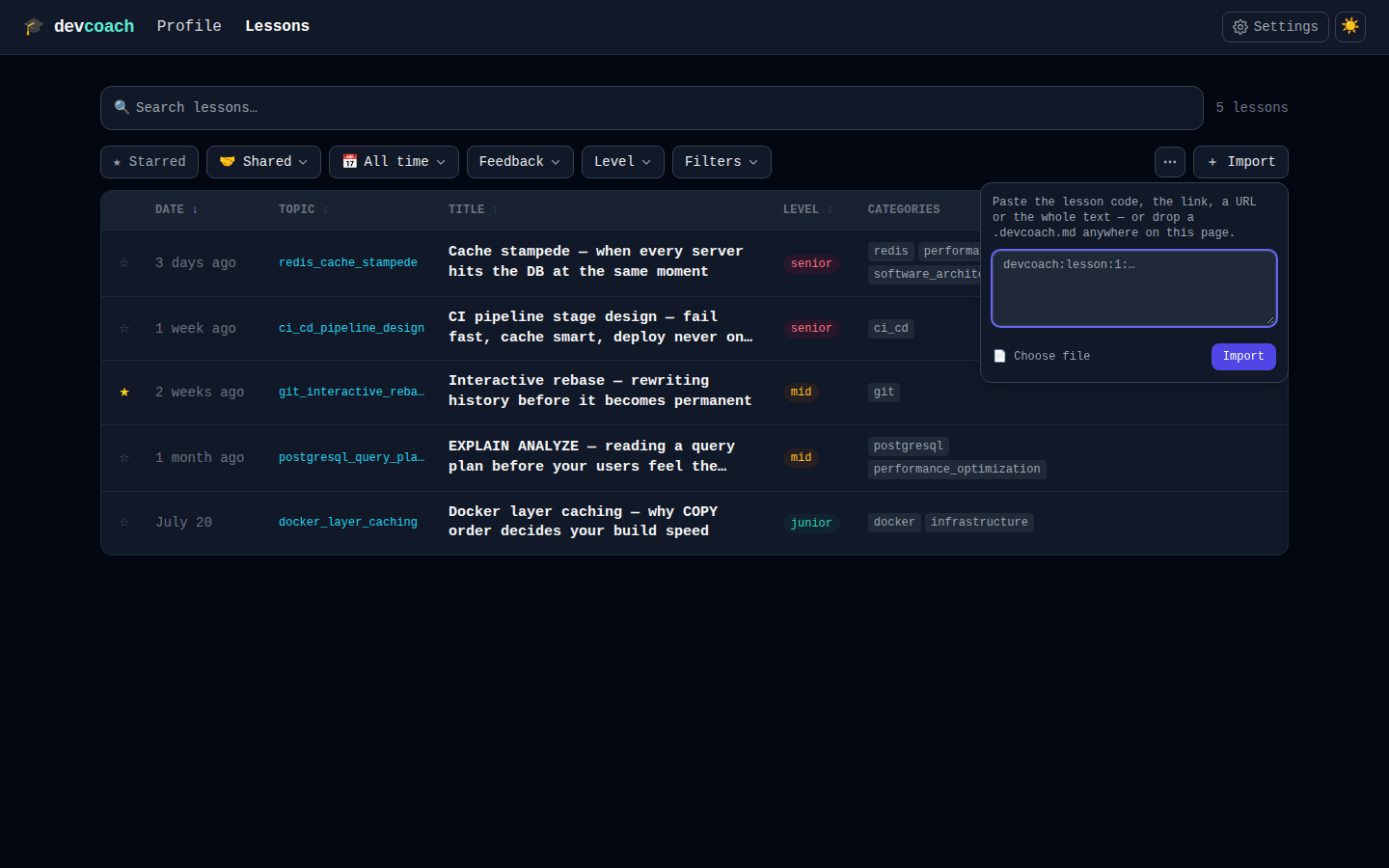
The top nav has Profile (/knowledge) and Lessons; top-right, the ⚙️ Settings button
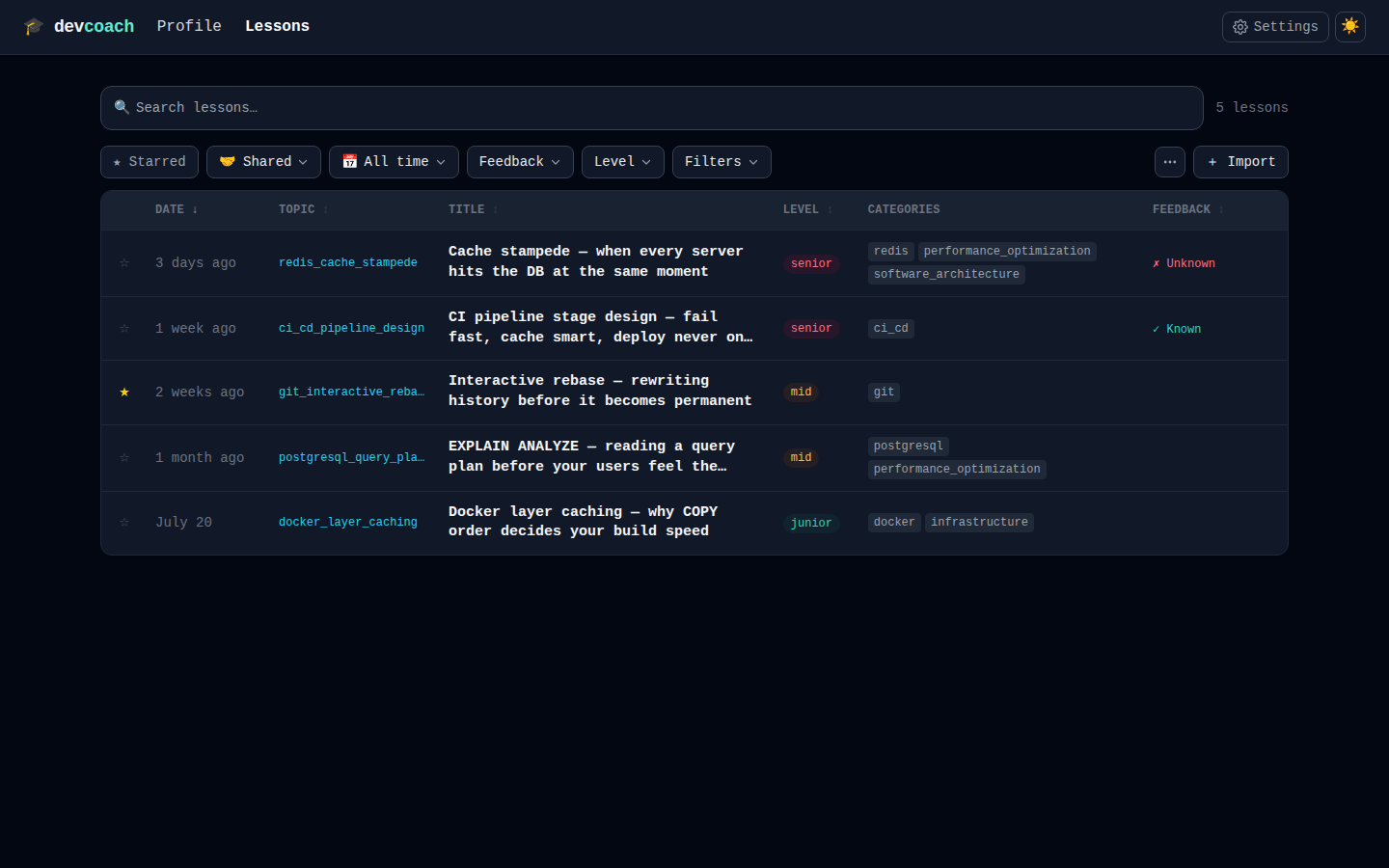
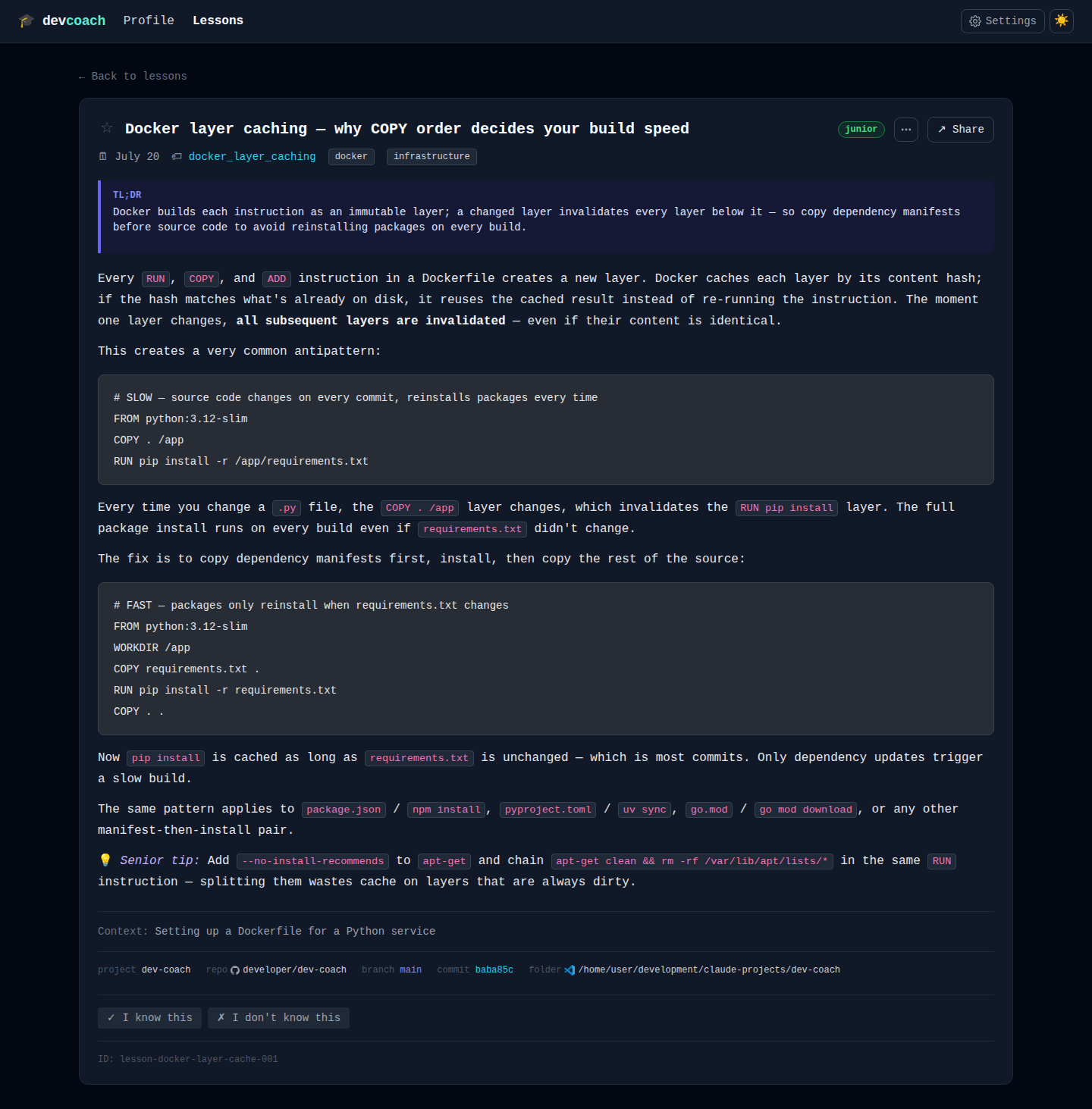
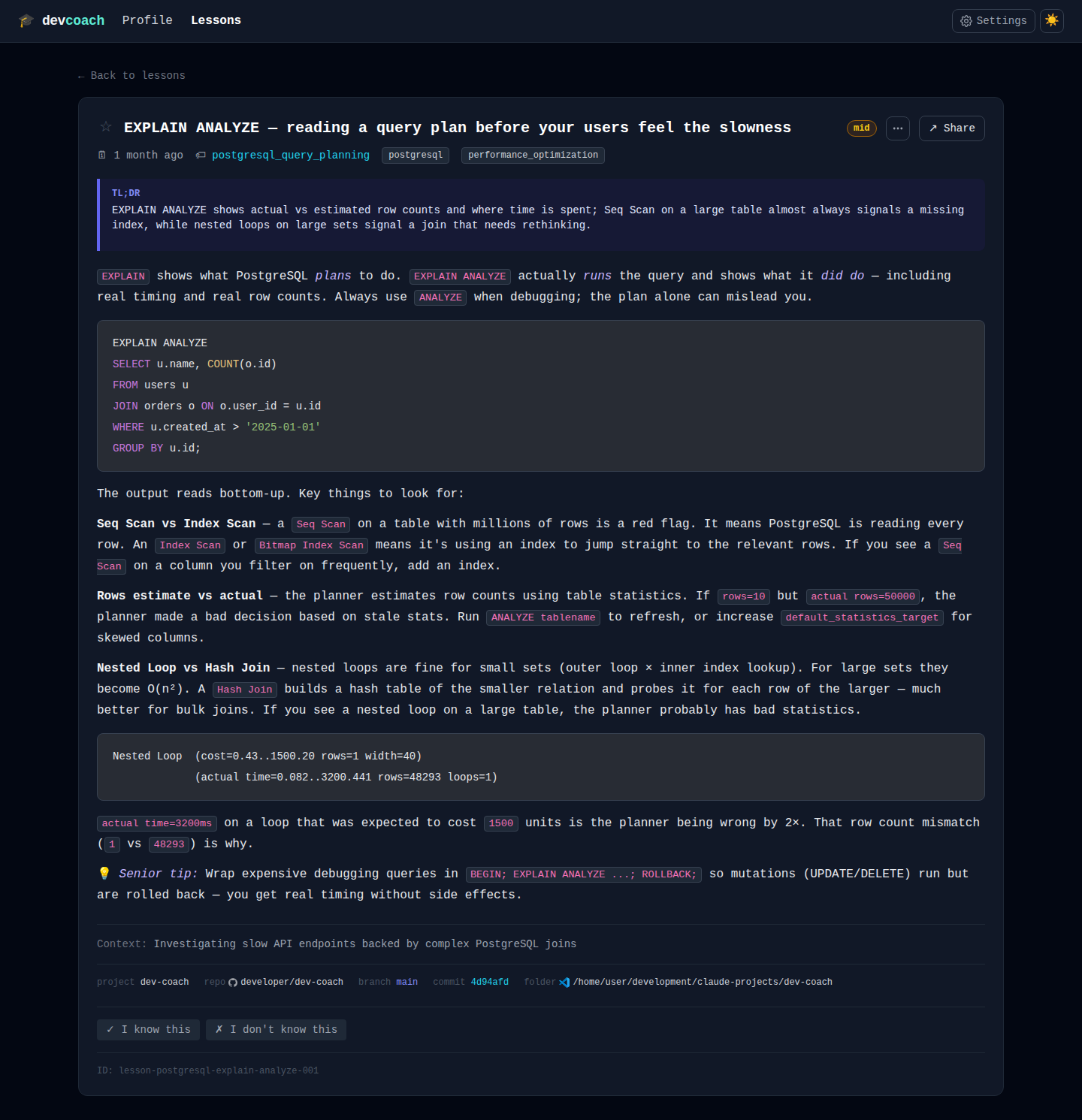
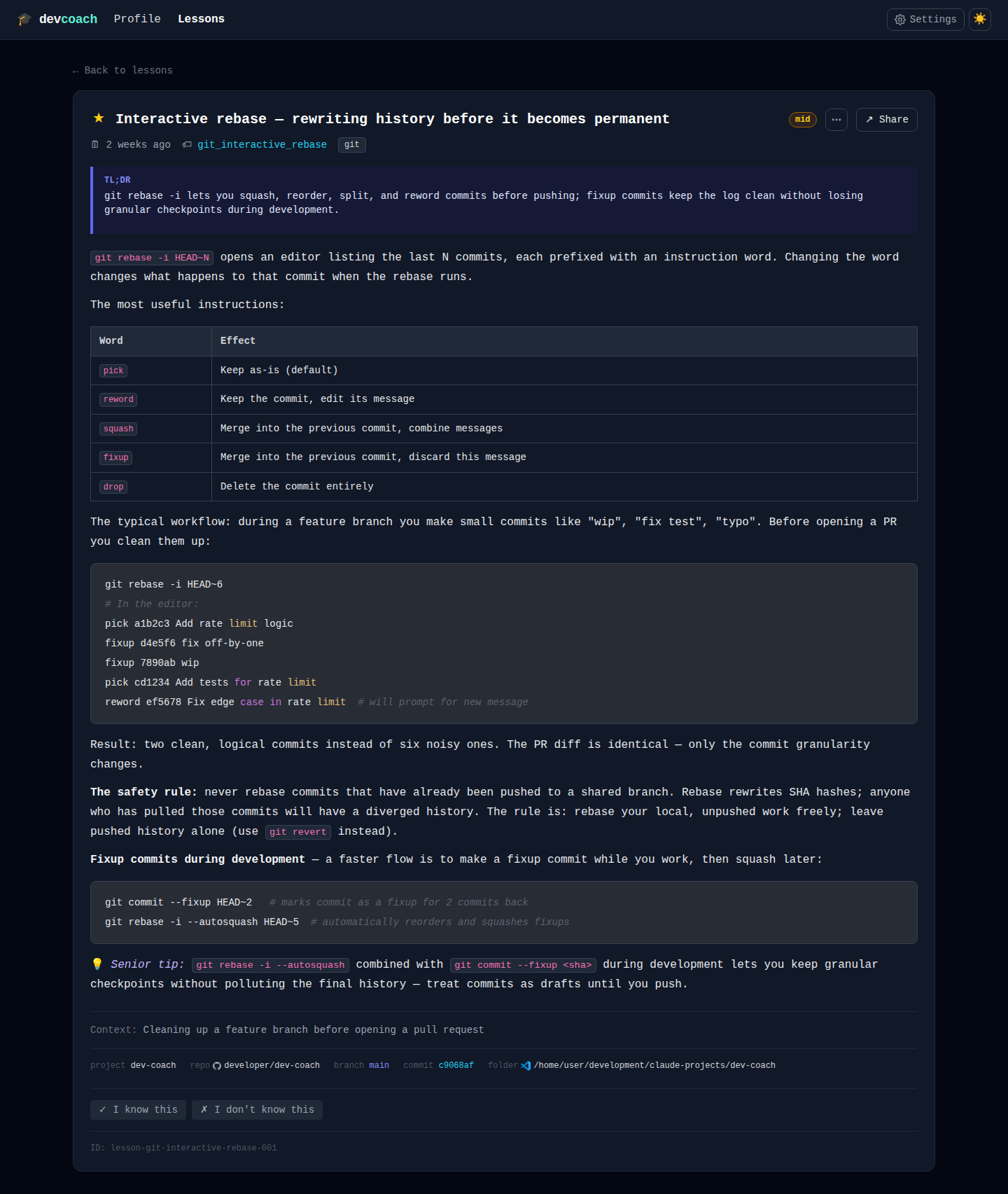
and the sun/moon toggles the light/dark theme. The root URL (/, what devcoach ui prints) opens Lessons once you have at least one
lesson and the knowledge map before that; pick one explicitly under Settings → Home page.
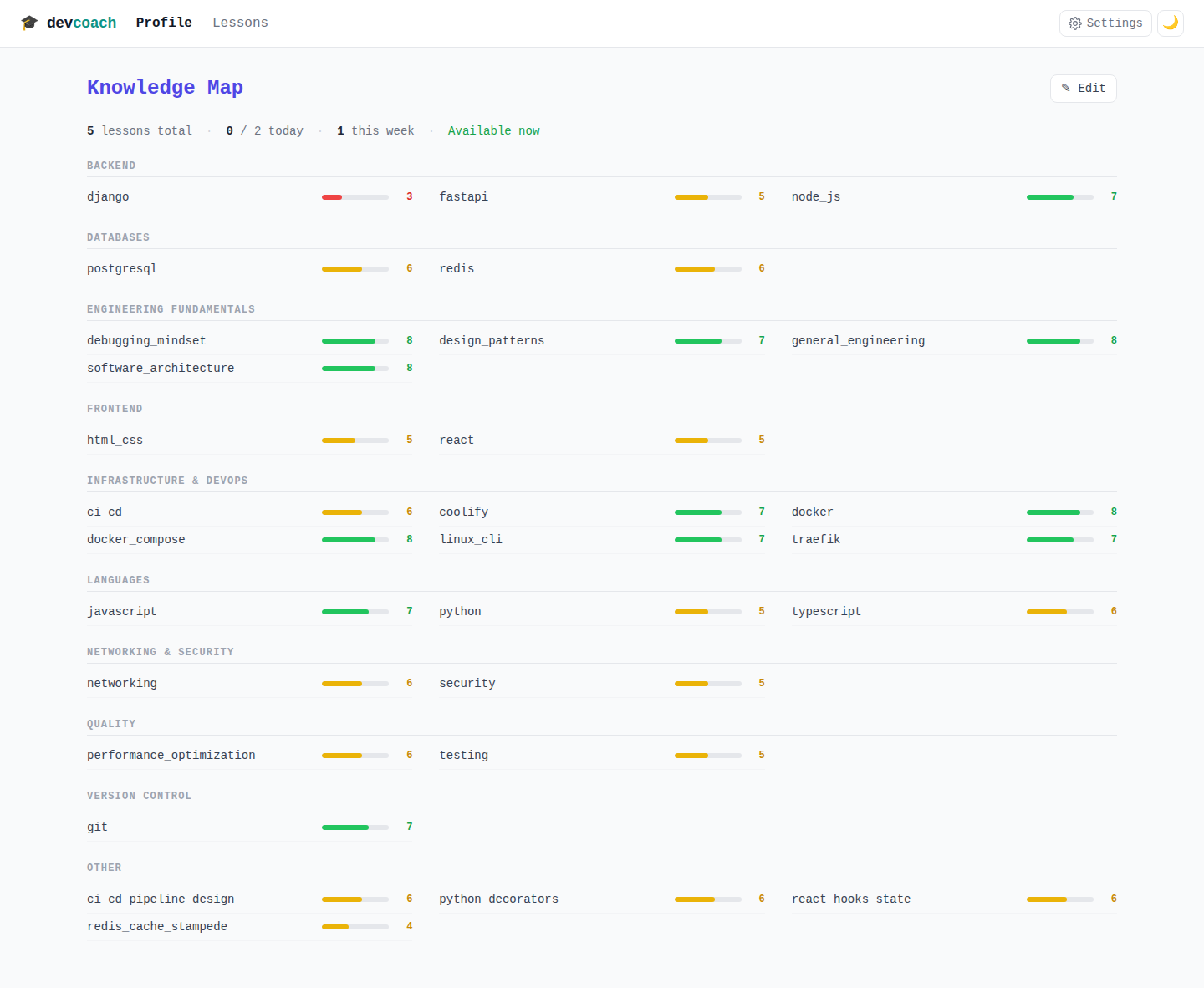
Knowledge map (/knowledge)
Displays your full knowledge map with colour-coded confidence bars:
- Green — confidence ≥ 7 (strong)
- Yellow — confidence 4–6 (intermediate)
- Red — confidence ≤ 3 (learning)
Personalizing your profile — click ✎ Edit to enter edit mode:
- Adjust confidence —
+/−buttons beside each bar to tune your self-assessment by 1 point - Reorganise topics —
⇄button moves a topic to a different group - Remove topics —
×button deletes a topic you no longer care about - Add topics —
+ topicin a group header adds directly to that group;+ Add topicat the top adds to Other - Create groups —
+ Add groupat the top to organise new categories (Languages, DevOps, Frontend, etc.) - Delete groups —
×beside group names; topics move to Other if deleted
Changes save immediately as you edit.
View mode: topic names are clickable links that filter the lessons page to show only lessons for that topic.
Stats bar (top of page): N lessons total · N / max today · N this week, then whether a lesson is available now — or why not.
Lessons (/lessons)
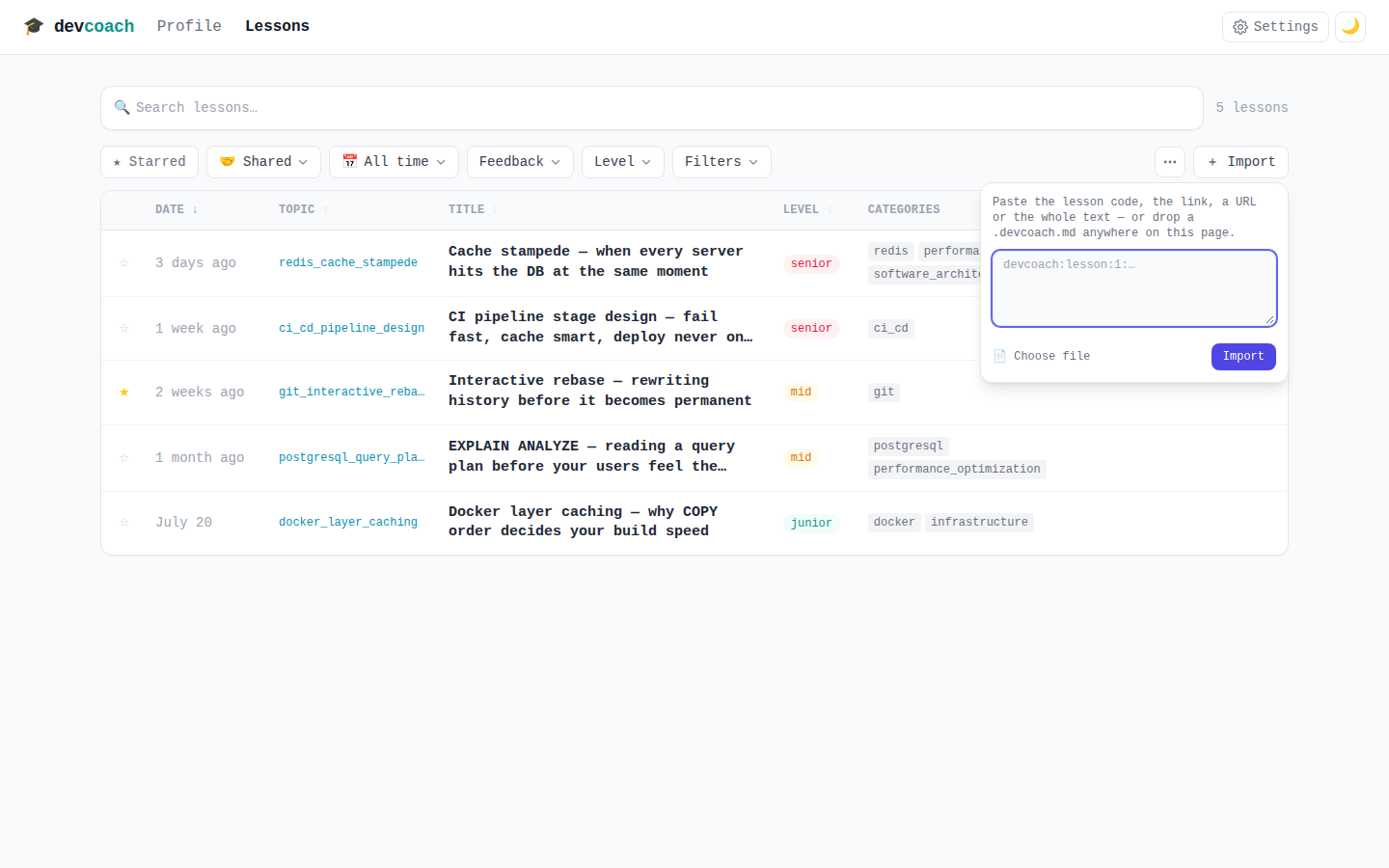
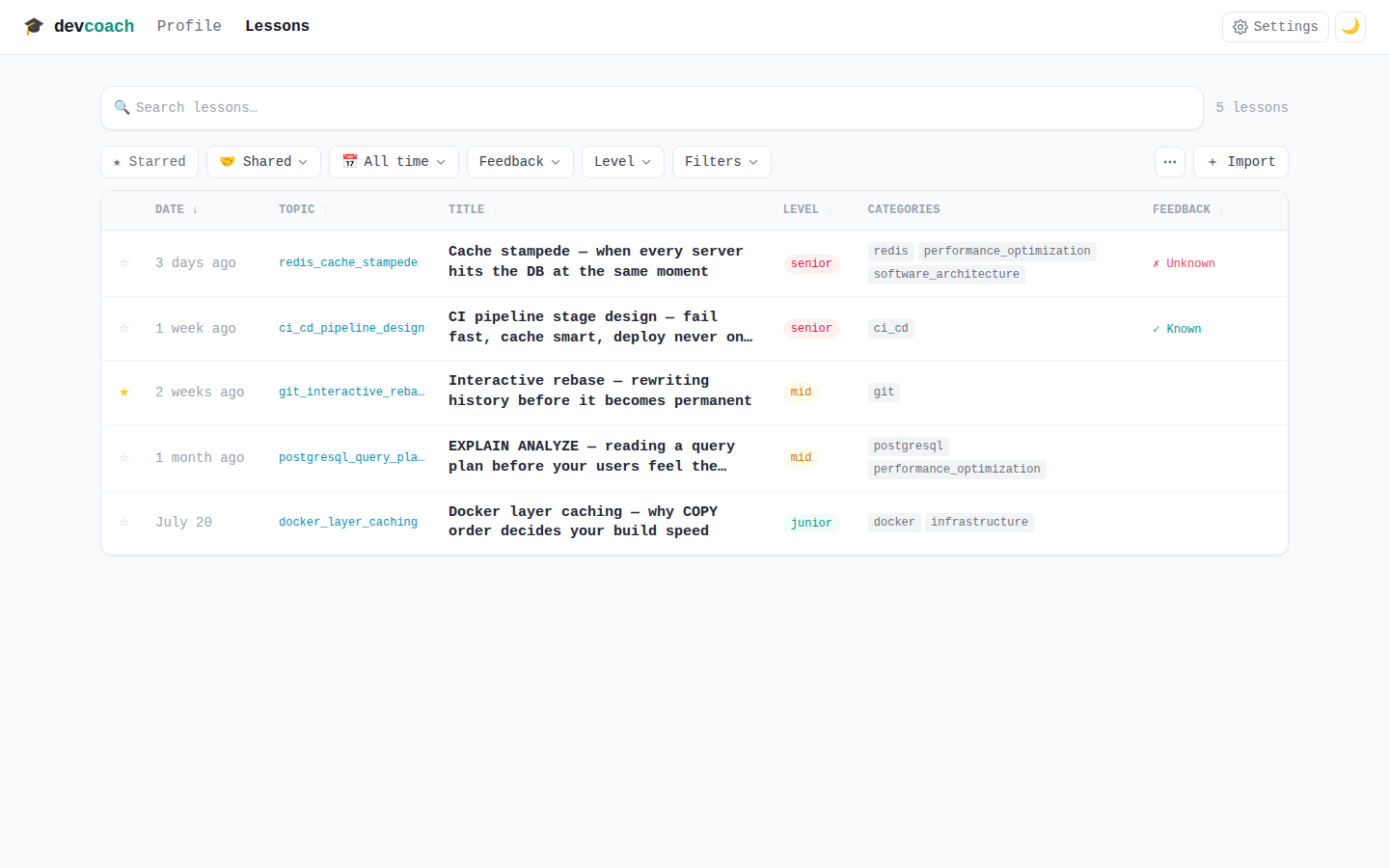
Filterable, sortable table of all delivered lessons.
Filters:
- Period — All time / Today / Last 7 days / Last 30 days / Last year / Custom range (the date range
accepts an optional time:
2026-04-25T14:30) - Feedback — All feedback / ✓ Knew it / 💡 Understood / ✗ Couldn't follow / — No response
- Level — All levels / 🟢 Junior / 🟡 Mid / 🔴 Senior
- Filters popover — Category / Project / Repository / Branch / Commit
- Starred only
- Shared — All lessons / 👤 My own / 🤝 Shared with me / 🤝 from
<name>(one entry per sender) - Free-text search (also matches the sender of a shared lesson)
Active filters show as chips above the table; when nothing matches you get "No lessons match the current filters."
Sort: click the Date, Topic, Title, Level or Feedback column header. Ascending or descending.
Table columns: ★, Date, Topic, Title, Level, Categories, Feedback, ↗ — the title gets the width
(categories wrap onto a second line when needed); the feedback cell shows ✓ Knew it / 💡 Understood / ✗ Couldn't follow
(or nothing yet); ↗ opens the Share panel right there; a shared lesson shows 🤝 <sender>
under its topic.
Pagination: 25 per page.
Actions per row:
★— toggle starred↗(appears when you hover the row) — share this lesson from a popover right next to the icon, without leaving the list- Click a level pill or category chip — filter the table by it
- Click anywhere else on the row — open the detail page (feedback is recorded there)
⋯ More (toolbar, right) — the rare actions live behind this button so the toolbar stays calm:
- Delete lessons… — deleting is deliberately hidden until you ask for it. The star column turns into checkboxes, clicking a row now ticks it instead of opening it (the header checkbox ticks the whole page), and a bar at the bottom shows N selected with Delete selected. One confirmation, then the list reloads with the same filters and page. Esc or ✕ Cancel (toolbar or bar) leaves the mode without deleting anything; it is never remembered across reloads. Deleting is permanent; a lesson someone shared with you can be deleted too, and the same share is accepted again if you import it later.
- Reset column widths — see below.
Resizable columns — on desktop widths, drag the boundary between two column headers: the column
on one side grows exactly as much as its neighbour shrinks, so the table never changes width and no
column can be pushed out of view. The title column takes whatever its neighbours give or take and never
drops below a readable width. Widths are remembered in this browser (and dropped if they no longer fit
the window); double-click a boundary to reset the two columns beside it, or use ⋯ → Reset column
widths. When the Date column gets narrow, dates switch to a compact form: 17m, today, Mon 2 within the
last week, then Sep 10. Lessons
two months old or older show their date instead of a relative label: July 3 within the current
year, July 3, 2025 for earlier years (compact: Jul 2025).
+ Import (toolbar, right) — add a lesson someone shared with you: paste the code, the link, a
URL, or the whole copied card into the box, pick a .devcoach.md file, or simply drop the file
anywhere on the page. See Sharing a lesson.
Lesson detail (/lessons/<id>)
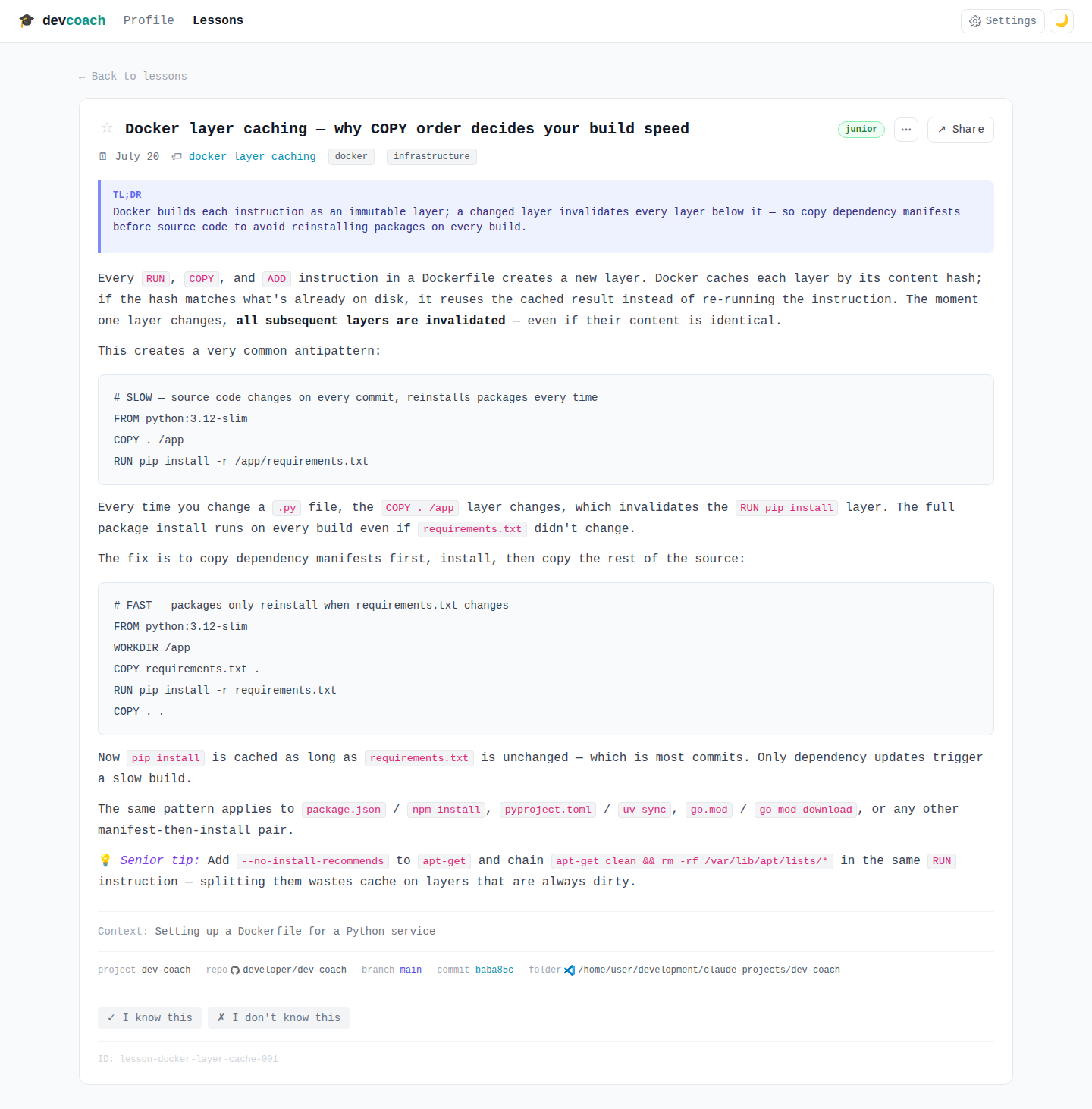
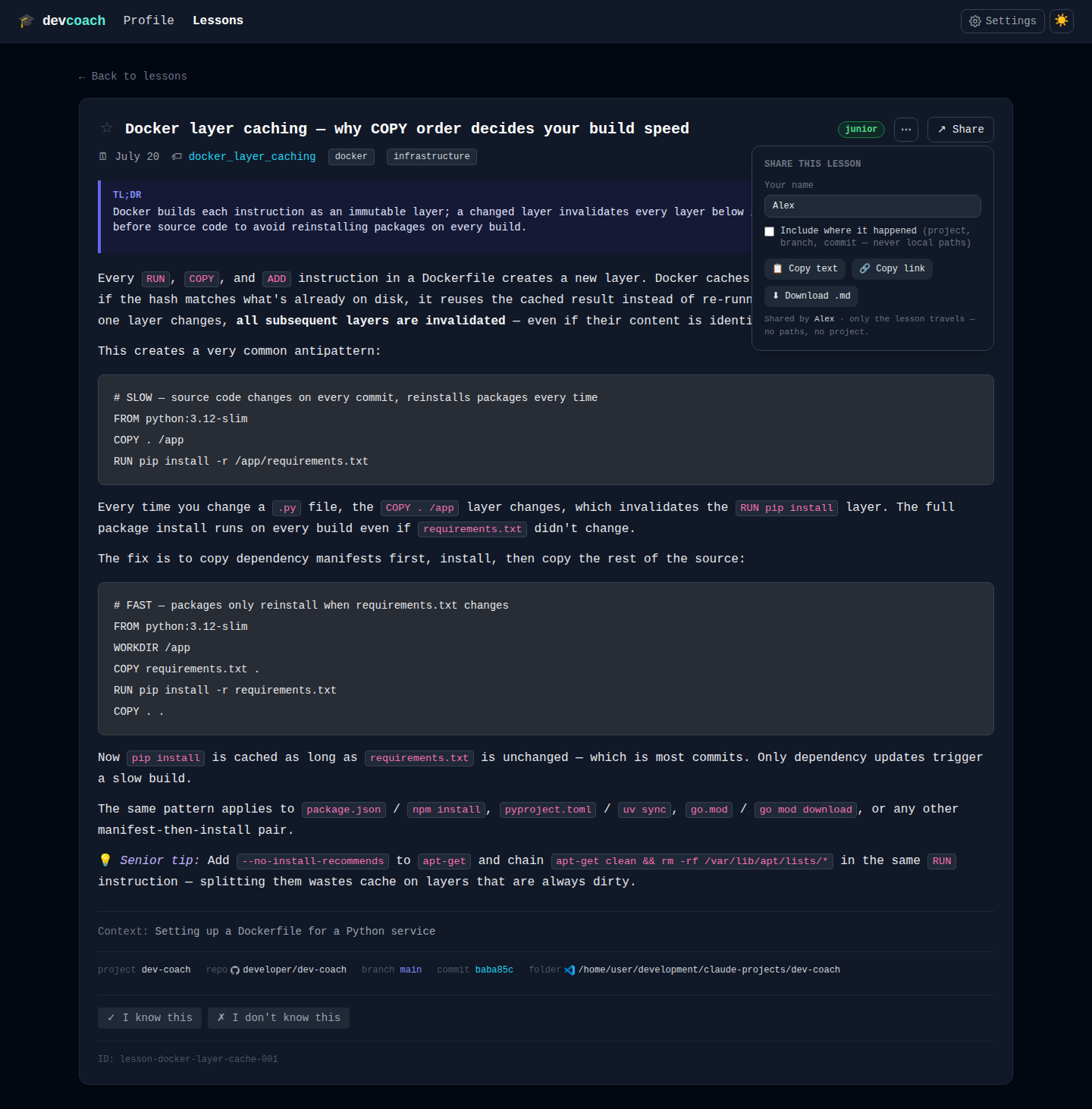
Full lesson content laid out in reading order:
- Title row —
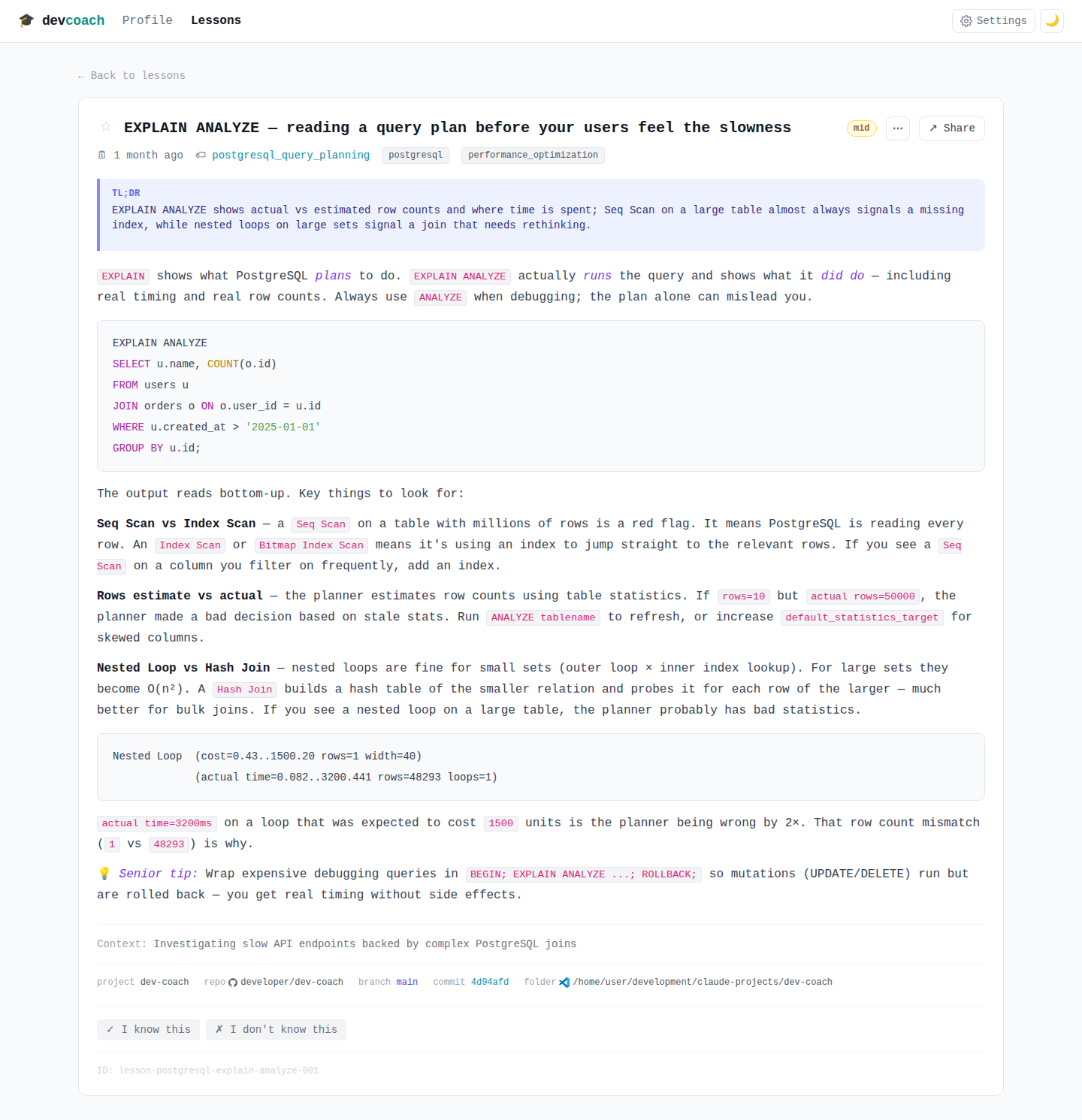
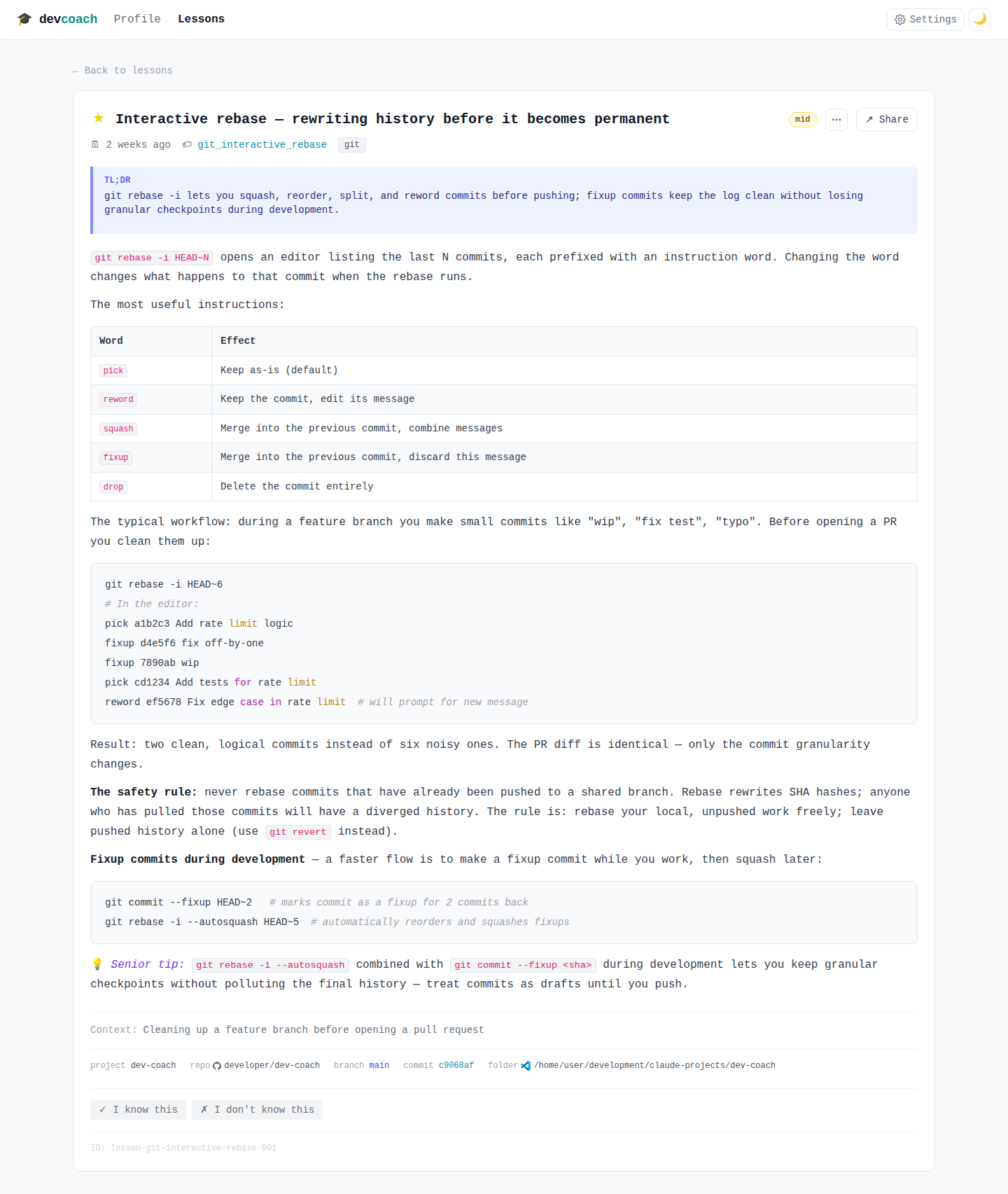
← Back to lessons, star toggle, title, level pill (Junior / Mid / Senior), ↗ Share, and the same ⋯ More button as the Lessons toolbar, holding the rare actions — today 🗑 Delete lesson… (asks for confirmation, then returns to the list) - Metadata row — relative date with tooltip, topic ID, category chips, feedback badge + Clear;
a lesson someone shared with you also shows
🤝 shared by <name> - TL;DR callout — one-sentence summary in a highlighted indigo box, always visible above the body
- Lesson body — full markdown content with syntax-highlighted code blocks
- Task context — a
Context:line with the coding task that triggered the lesson (when available) - Git metadata — a row of lowercase labels,
project · repo · branch · commit · folder, linking back to where the lesson came from:- project — the folder name where you were working
- repo — link with a platform icon (GitHub, GitLab, Bitbucket, or local). Click to open the remote repository in your browser or view local details
- branch — the git branch you were on when the lesson was taught
- commit — the exact commit (clickable to view on GitHub/GitLab/Bitbucket or as a local hash)
- folder — a VS Code icon link that opens the project folder in VS Code, so you can immediately review the code that triggered the lesson
- Feedback buttons —
✓ I knew this/💡 Understood/✗ Couldn't follow(hidden once feedback is recorded) - ID line — the full lesson ID, for
devcoach lesson <id>and friends
- Docker layer caching (Junior)
- PostgreSQL EXPLAIN ANALYZE (Mid)
- Git interactive rebase (Mid)
- CI/CD pipeline stages (Senior)
- Cache stampede (Senior)
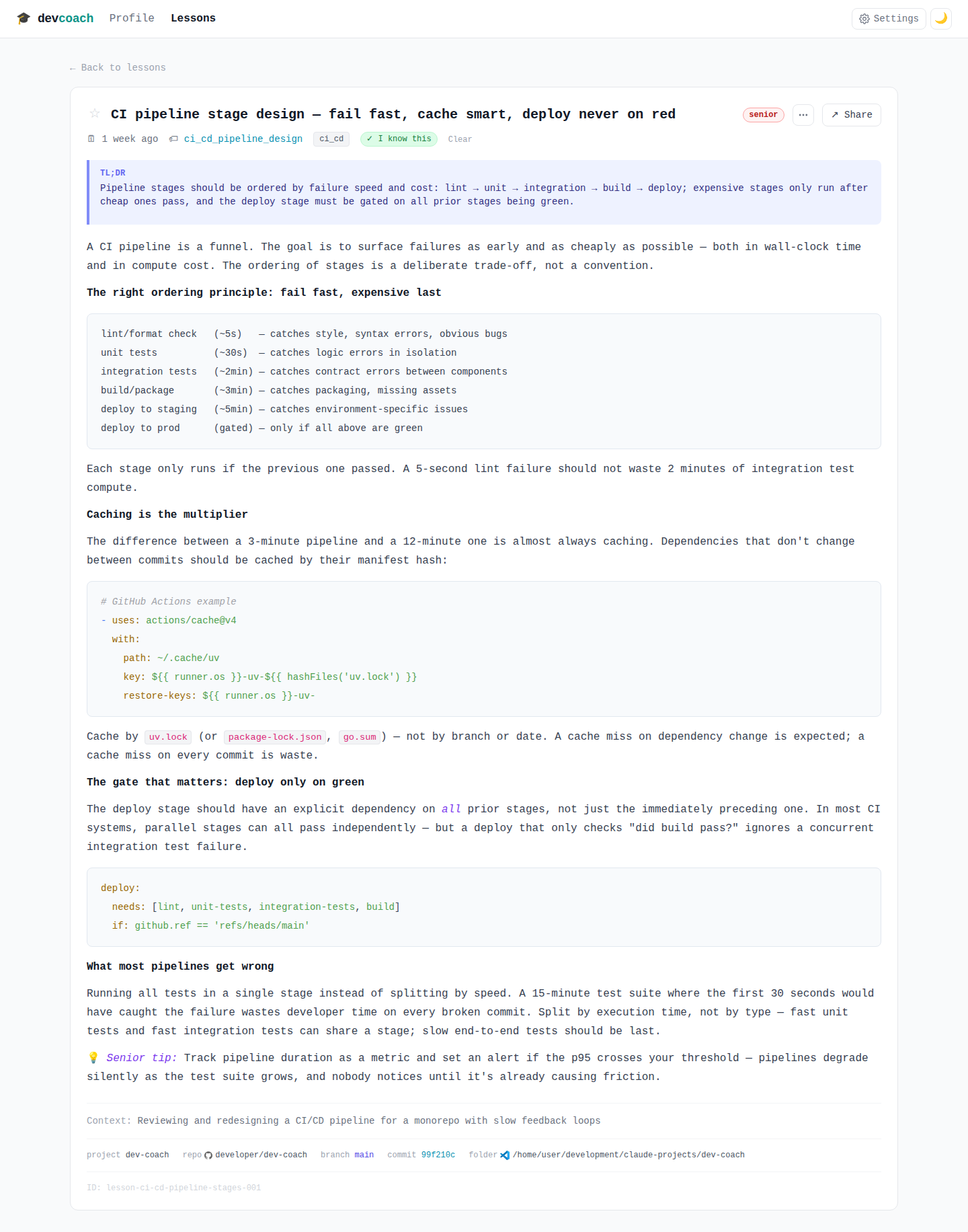
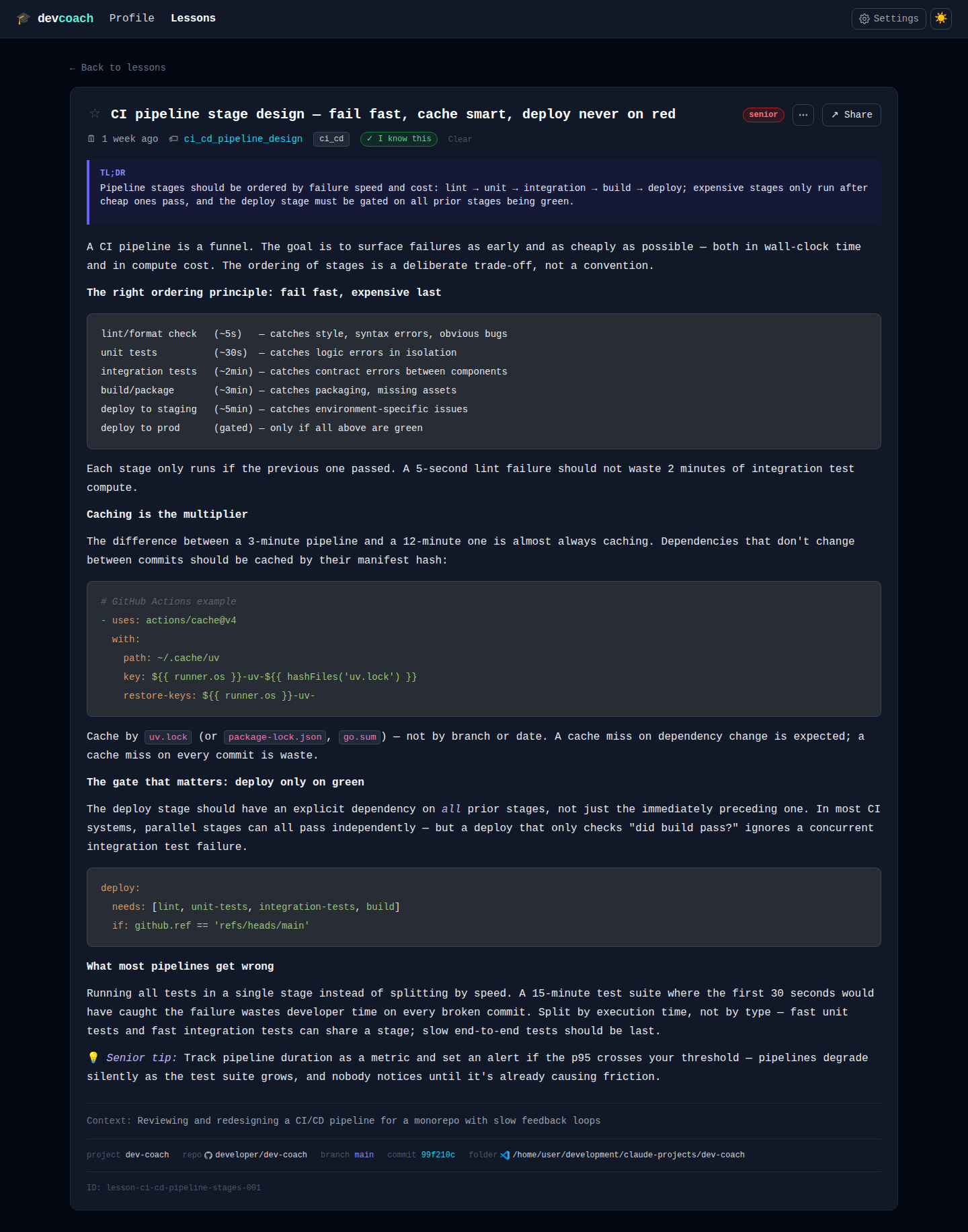
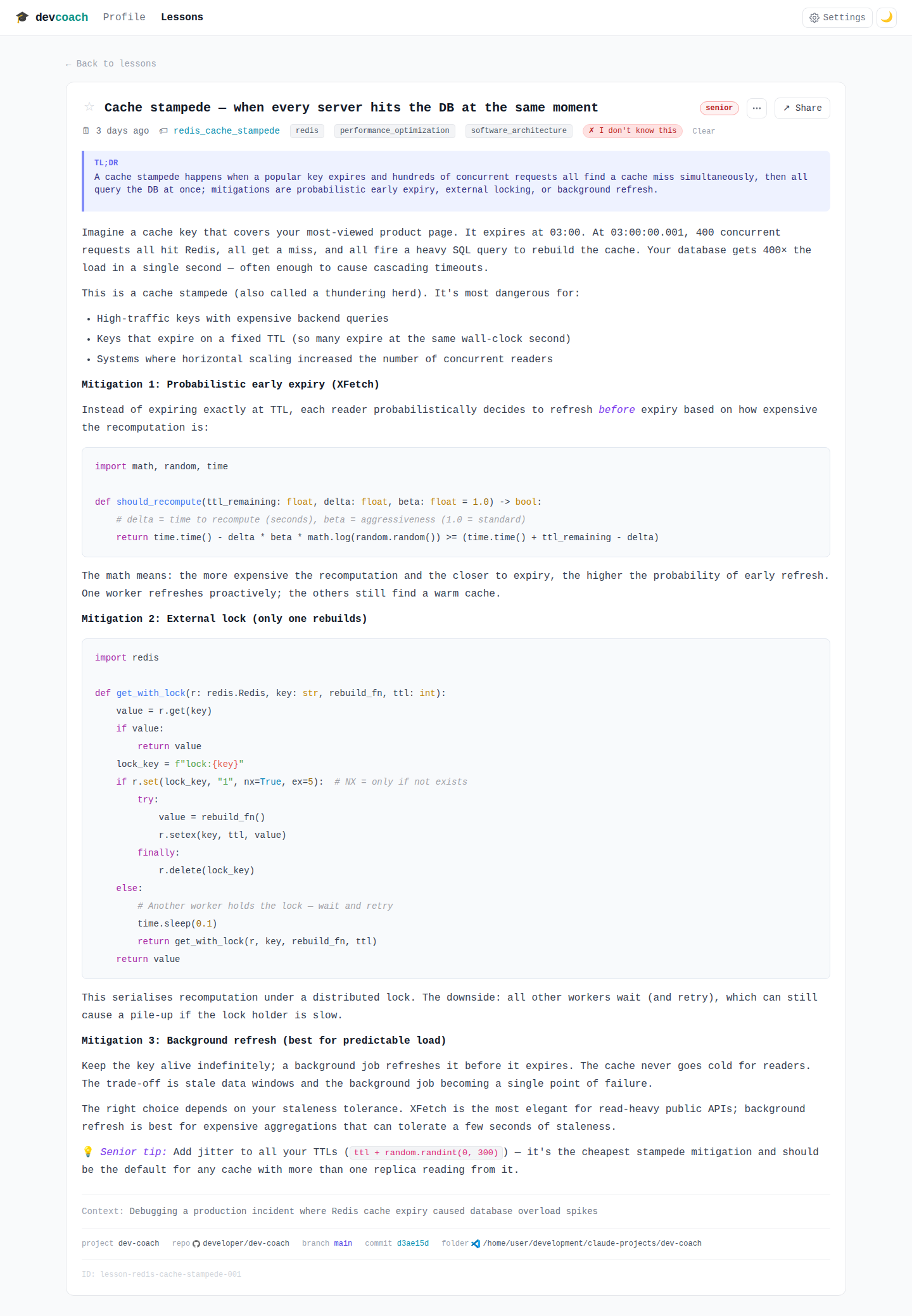
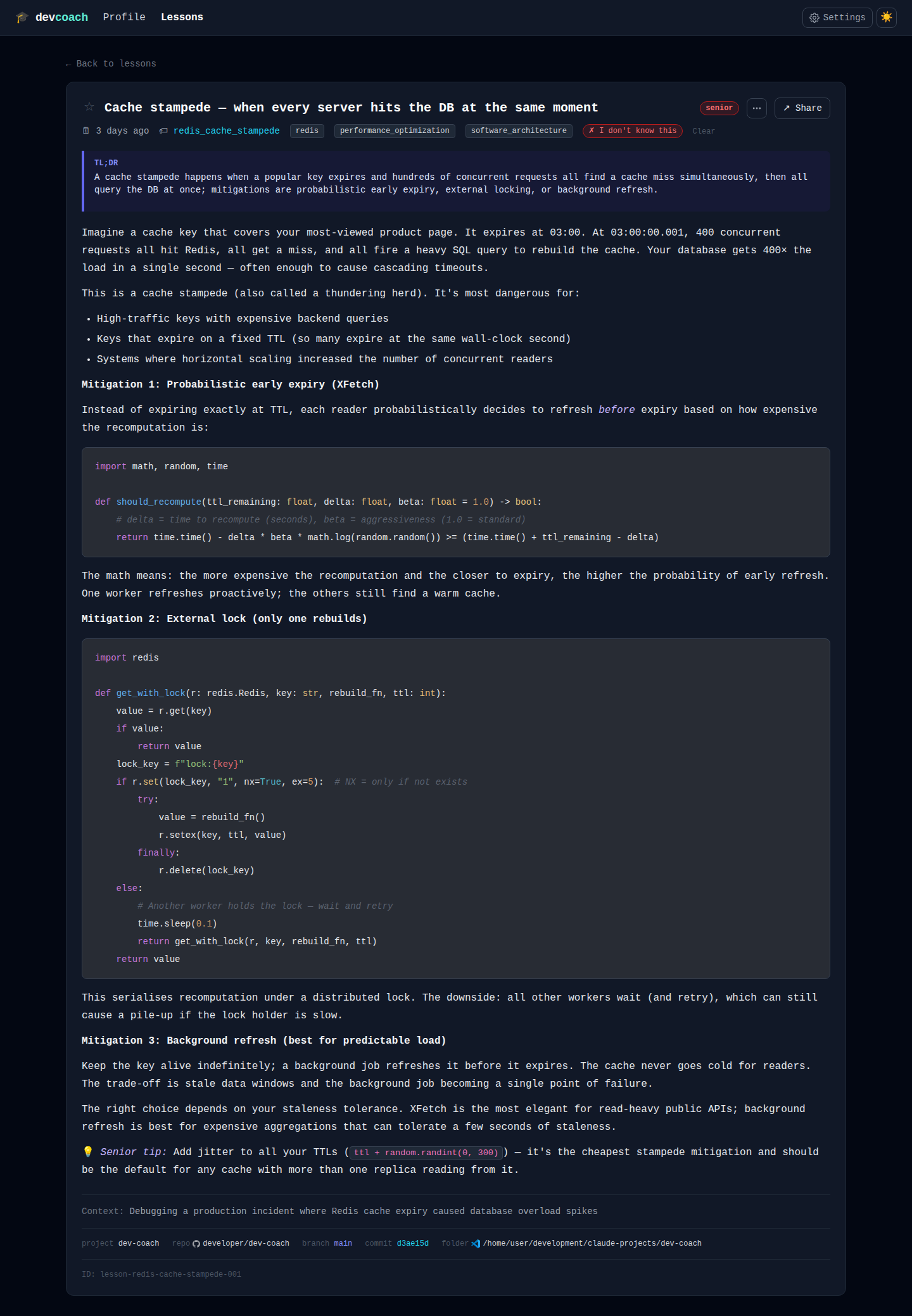
Courses (/courses)
Every step-by-step course with its progress, its status and the lesson it grew
from. A course page is the document itself, one step at a time, with a slim sticky bar on top (back ·
title · status · progress · ⋯) and a pinned step list at the side (Mark done / Skip /
Reopen; clicking a step switches the document to that section without a reload; About this
course folds away the goal, the seed lesson and the ✓/✗ prerequisite chain). The document sits in
a sandboxed frame (sandbox="allow-scripts allow-forms" plus a Content-Security-Policy that also
sandboxes it when opened on its own: no network, no form posts, no navigation out — eval is
allowed so editable JS examples can run). The frame grows to the height of the step it shows, so
the page scrolls, never the frame. The ⋯ menu holds Delete course… — rows and folder go,
the seed lesson stays. A lesson that seeded a course shows a 🎓 Course · N/M link in its
metadata row.
Sharing a lesson
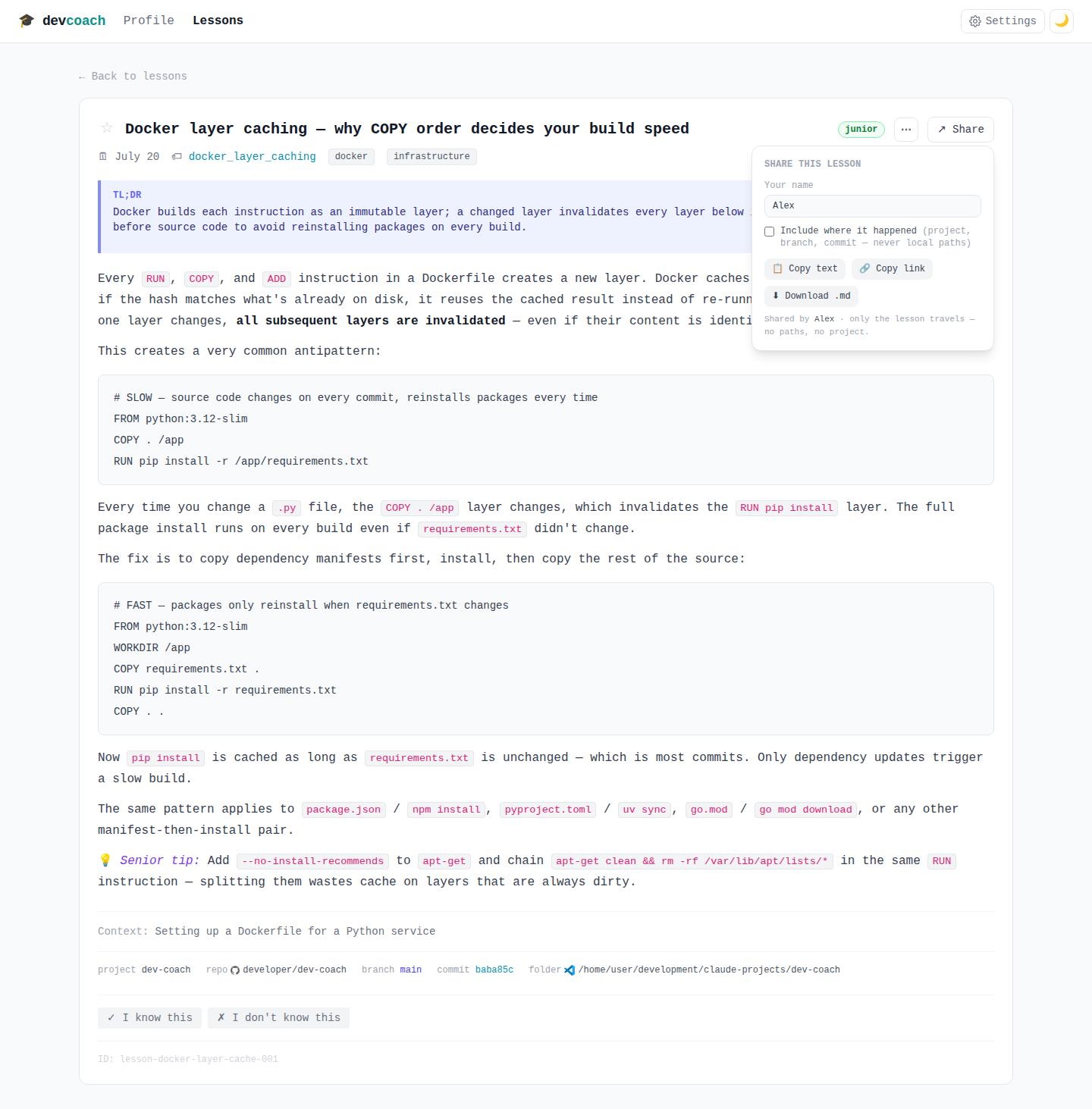
A lesson that landed for you is worth handing to a teammate. ↗ Share on a lesson (or ↗ in the
table, which opens the same panel in a popover next to the row) shows your name (prefilled from share_name, then git), an Include where it
happened checkbox (project, branch, commit and task context — off by default, and a local folder
path is never exported), and three ways to hand it over — all carrying the same lesson:
| Transport | What you get | Best for |
|---|---|---|
| Copy text | The lesson card as markdown, then one devcoach:lesson:1:… line | Chat, issues, email — the receiver pastes the whole thing anywhere devcoach accepts input |
| Copy link | https://ultimaphoenix.github.io/dev-coach/lesson#devcoach:lesson:1:… | Messaging: the receiver sees the lesson in the browser and imports it with one click |
| Download .md | <lesson-id>.devcoach.md — YAML front matter + the markdown body | Files, pull requests, wikis — renders on GitHub, opens in any editor |
What travels, how the link works and what an imported lesson does to your pacing are in the Sharing lessons guide.
Receiving — every way in leads to the same place:
- + Import on the Lessons page: paste the code, the link, a URL whose body is a shared lesson
(a raw gist, a file in a repo), the whole copied card, or a lessons JSON export; pick a
.devcoach.md; or drop the file anywhere on the page. - The share link's Import button opens
/lessons/import?code=…on your dashboard — a preview with a single Add to my lessons button. Nothing is saved until you click. - The CLI (
devcoach import, no argument = clipboard) and your agent (import_lesson) do the same.
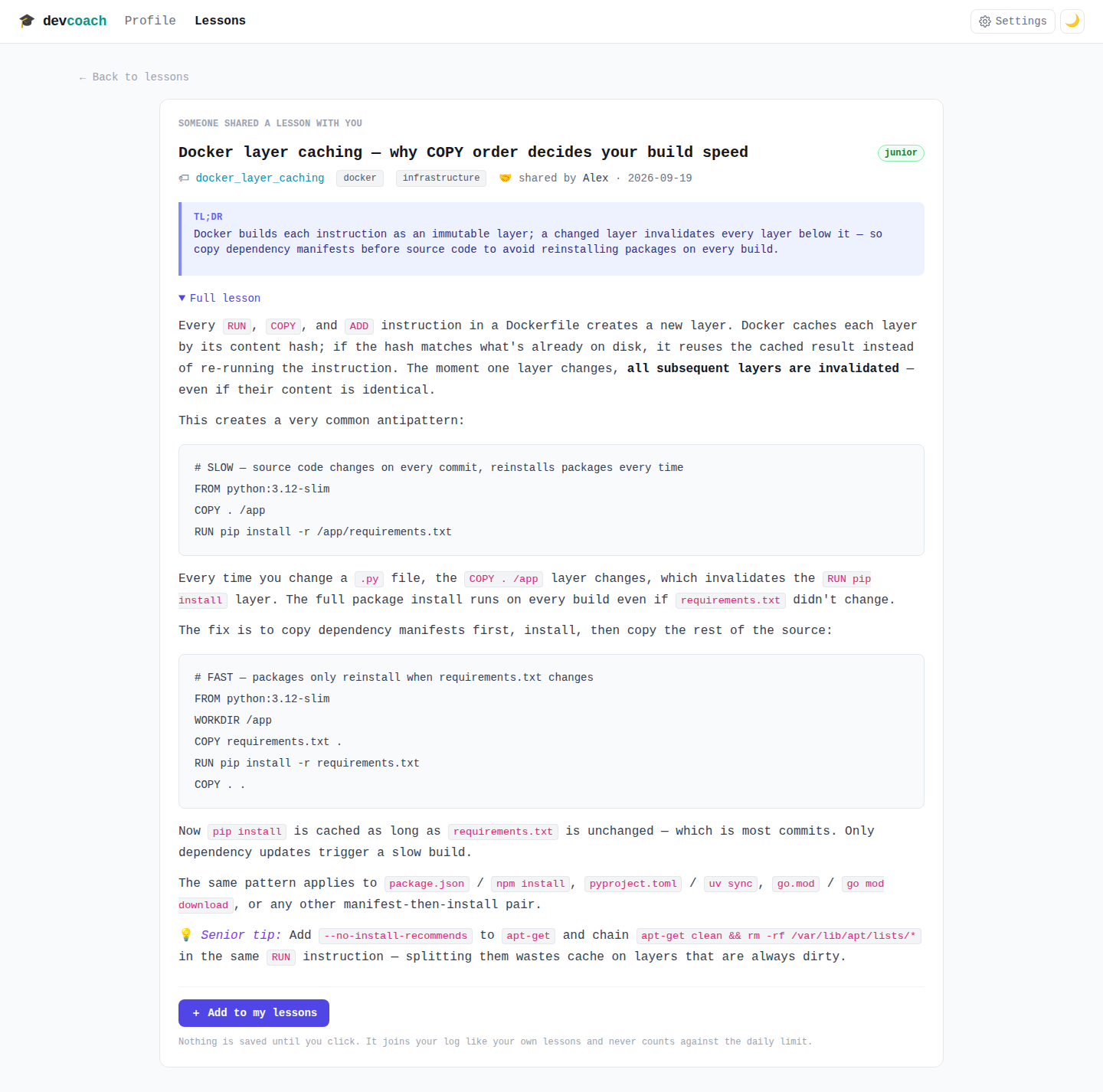

An imported lesson shows a 🤝 shared by line in its metadata and never counts against your daily limit — see How an imported lesson behaves.
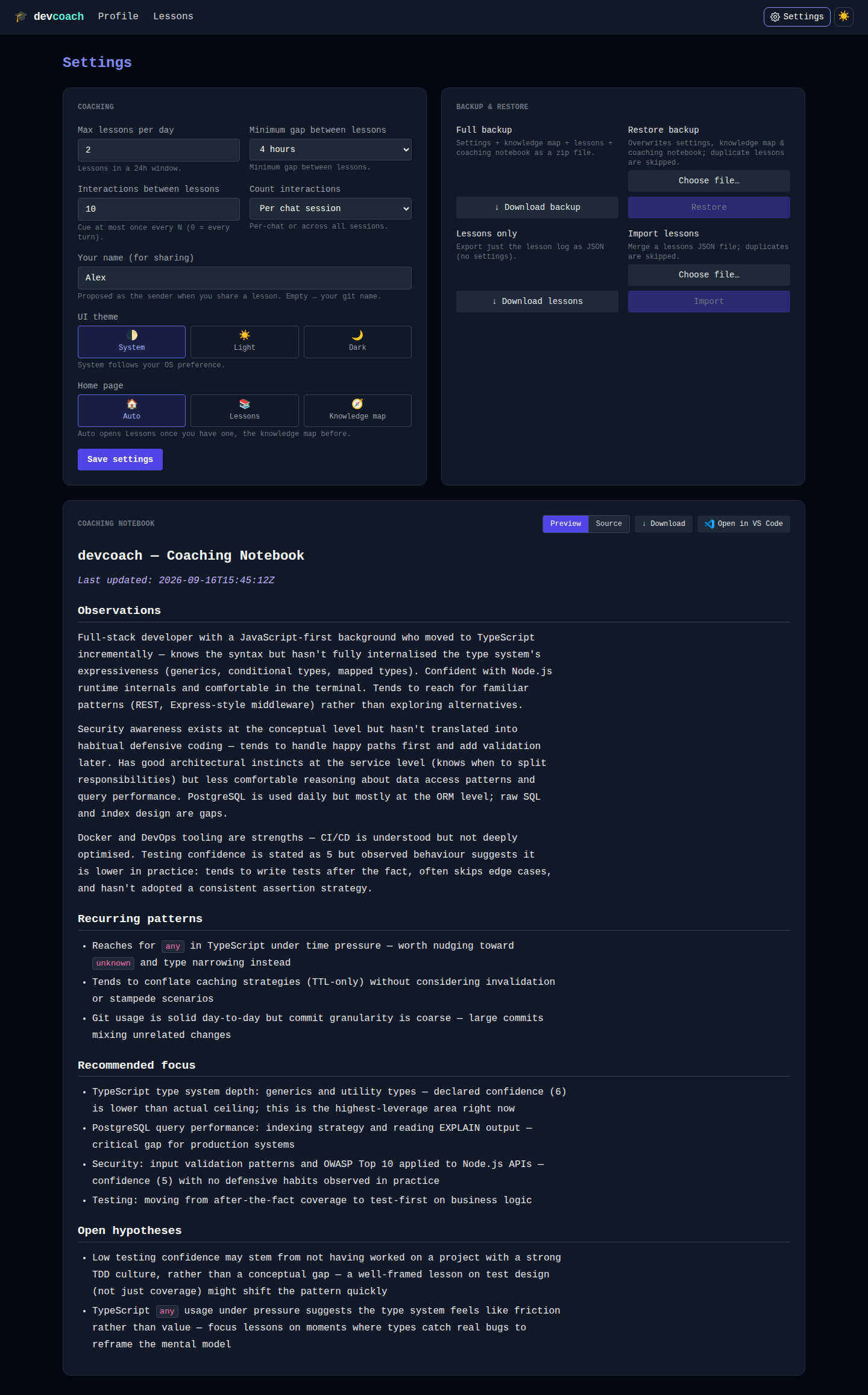
Settings (/settings)
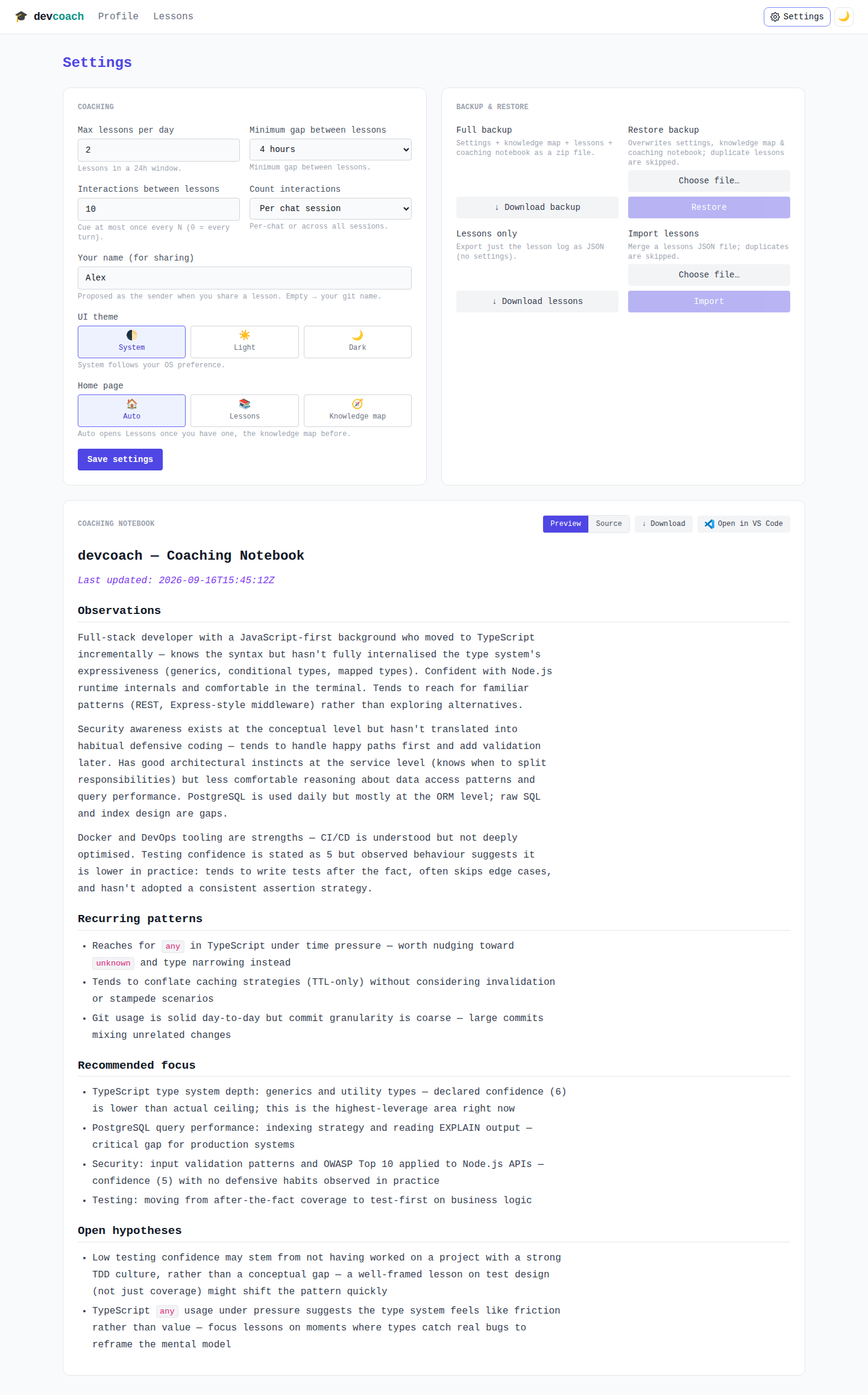
Three panels:
Coaching — the six settings, applied with Save settings:
- Max lessons per day — maximum lessons in a 24-hour window (1–20;
max_per_day) - Minimum gap between lessons — a dropdown: No cooldown, 15 minutes, 30 minutes, 1 hour,
1 hour 30 min, 2 hours, 3 hours, 4 hours, 6 hours, 8 hours, 12 hours, 24 hours (
min_gap_minutes) - Interactions between lessons — how many interactions pass before a lesson is cued (0–1000;
0 = every turn;
nudge_every) - Count interactions — Per chat session or Globally (
nudge_scope) - Your name (for sharing) — the sender name proposed when you share a lesson; empty means your
git
user.name(share_name) - UI theme — 🌓 System / ☀️ Light / 🌙 Dark (
ui_theme) - Home page — 🏠 Auto / 📚 Lessons / 🧭 Knowledge map (
ui_home): where/lands. Auto opens Lessons once you have one, the knowledge map before
Backup & Restore:
- Download backup — a full zip (settings + knowledge map + lessons + notebook)
- Restore backup — restore everything from a backup zip
- Download lessons — all lessons as JSON
- Import lessons — upload a previously exported JSON file
Coaching Notebook — a read-only view of ~/.devcoach/learning-state.md, the notes devcoach keeps on
how you learn, with a Preview / Source toggle, ↓ Download, and Open in VS Code.
Backup & Restore is the dashboard equivalent of the CLI's
devcoach backup / restore — use it to move your profile to another
machine or take a snapshot before a big change. (The smaller Download/Import lessons buttons handle just
the lesson history as JSON.)
How personalization works
The dashboard is where you actively shape your coaching:
-
Adjust confidence on the Knowledge map — if you feel stronger in TypeScript than you rated yourself, bump it up. This tunes which topics devcoach prioritises.
-
Edit groups and topics — add topics you care about, delete ones you don't. Your knowledge map is your learning intent statement.
-
Record feedback on lessons — when you click ✓ or ✗ on a lesson, you're telling devcoach whether that angle landed. This adjusts both your confidence on that topic and future lesson depth.
-
Star lessons to revisit — use the
★button to mark lessons worth reading again. You can filter by "starred only" on the Lessons page. -
Jump to context — click repository, commit, or folder links on lesson details to immediately review the code that triggered the lesson. This helps you understand why the lesson was taught and where to apply it.
-
Share what landed — hand a lesson to a teammate with ↗ Share, and import theirs with + Import. Shared lessons enrich your log without touching your pacing.
The knowledge map, feedback history, and git context together create a feedback loop: your edits guide lesson selection, lesson feedback adjusts your confidence, and the ability to jump back to context lets you learn in the exact place it happened.
Keyboard shortcuts
The web UI has no keyboard shortcuts. Use the CLI for faster access to individual commands.